ATTENTION!
We are not scammer or cheater. We Promise!!

mdm.exe*32 is the machine debug manager. The process normally starts, whenever operating system starts, which is used by the Windows NT Option Pack and Microsoft Developer Studio to provide application debugging. It's not essential, so if you wanna disable it or wanna end this process then you can. Some important about it, i would like to discuss here before sharing a way to disable it is that if you search on the internet about mdm.exe*32 process then lots of people asked a very common question that "Is this harmful?" or "Is this a Virus?".
Also Read: How To Fix Blue Screen Errors In Windows 7
Is This A Harmful Process or Virus?
Actually, it enables due to the internet explorer Script Debugging. It means, the process directly links with it. It's not a virus and not a harmful process. But if you have a Graphics card or GPU is installed in your device then it may harmful. Because it increases the temperature of graphics card. I've faced this issue and a GPU is also installed in my PC. So, whenever it enabled in my computer then my graphics card temperature increased up to 75-78°C that could burn your graphics card.
When this process enables, so you can't play games or can't down the more load on your graphics card. Futhermore, it also reserves CPU usage and physical memory of your device. So, if you've a low end PC then first disable it and then continue your work. Otherwise, you may have to lose your computer.
How To Disable mdm.exe*32 Process In Windows 7?
As i said above, this process directly links to the Internet Explorer. So definitely it will disable from it. To do that you have to disable from two different locations. First is the 'Internet Explorer' and second is the 'Registry Editor'. In actual, The file mdm.exe is located in a subfolder of "C:\Program Files\Common Files" or sometimes in a subfolder of the "My Files" folder (usually C:\Windows\System\ or C:\Program Files\Common Files\Microsoft Shared\VS7Debug\). But you just have to disable from my mentioned two places. So to do that follow below.
1. Disable From The Internet Explorer
To disable this process from the internet explorer, first open your Internet Explorer and click on the Setting icon at the right of the Top and go the 'Internet Options'.

When you'll click on it then a separate tab will be appeared. Here click on the 'Advanced' option like below image.

After that find 'Disable Script Debugging (Internet Explorer)' and 'Disable Script Debugging (Other)' under the options of Settings. Once you got them then simply mark on both and click on 'Apply'. That's it!

Also Read: 10 Tips And Tricks for Windows 7 Users
2. Disable From The Windows Registry
To disable from the Windows Registry, first open the Run by pressing Window + R keys.

Once the Run has been opened then type regedit here and click on OK.

After that action, Windows Registry will open. Here navigate the following keys at the left pane.
HKEY_LOCAL_MACHINE/Software/Microsoft/Windows/CurrentVersion/Run

Once you reached to the Run then click on it and find 'MDM7' key at right pane. Once you got then delete it. Now exit the registry and Reboot your computer.

Also Read: 2015's Top 10 Antivirus For Windows 7
Final Words
mdm.exe*32 is not a harmful process actually, but it may become. As I tell you above, if a graphics card is installed in your device then you should disable it as soon as possible. So, these were two different steps to disable mdm.exe*32 process. Hope I explained all steps fine. But after that if you still facing problem then email us feel free or leave your comment below with hesitation. We'll definitely reply you.

God mode, a hidden secret of Windows operating system. It was introduced first time in Windows 7. After that, it's consistently available in Windows 8 or 8.1 and 10. But still yet windows users are not aware from it even I wasn't too. Actually, it works very simple. You can quite imagine from its name "God", means it can do everything. Once you enable God Mode then you can manage Windows control panel in a click. You will be able to customize everything about Windows setting just in one click. Yeah, after that there'll no need to go to the different menus or options to customize control panel.
Also Read: How To Disable Night Mode In Windows 10?
The best thing of it, I like the most that it is easy to install and not complicated. Try it once and experience the benefit to use it. Below are the steps to enable, but before that I'd like to explain a short definition of God Mode. So here's it.
What Is God Mode?
God Mode is a hidden feature of Windows operating system that is similar to the Control Panel or you can consider it as a brother of Control Panel. In which, all the options of control panel show in a list, as you can see in below image. From this way, you spare your time in opening more options to manage the setting. So, just open the God mode and then do your work in one click.

How To Enable God Mode In Windows 7, 8 or 8.1 & 10?
Instructions to enable it, are same for all Windows wsers. So no matter which operating system you're using now. I'm using Windows 7, so if you're a Windows 8 or 8.1 or 10 user then follow the same procedure below. (Note: Windows Xp and Vista users are not able to use the God Mode feature)
First of all, stay at your desktop and create a new folder on it.

Also Read: 10 Tips And Tricks That All Windows Users Would Love To Know
Once the folder created then rename it and give a name GodMode.{ED7BA470-8E54-465E-825C-99712043E01C}

Now God Mode has been created. Simply open it and experience its benefits. That's it!

Also Read: How To Paste Any Code or Command In Cmd By Using CTRL+V?
Conclusion
God Mode is the best opportunity to spare your time. Because in the God Mode all the options of Control Panel available in a form of list. That's why, you have no need to find folders and menus to customize Control Panel setting. Hope, this article is helpful for every Windows users. If you think, its really helpful then don't forget to share with others. Share your views about the God Mode via comment below.

Since a long time, now Microsoft is released an attractive version of Windows operating system, for that no one would be doubtful or no one would give any negative comment about that. I'm seriously glad to see Windows 10 and hope you would like it too. Recently I shared a procedure to download Windows 10 ISO file from Microsoft site. After sharing it, I received few emails, in which visitors were asking about the installation via USB. So, I thought, it's necessary to share a procedure to install through USB too. That's why, now I'm there. In this article, I shared a brief procedure of downloading and installation of Windows 10. Below are the steps. If any problem happens even after following the steps perfectly then email us feel free or leave your comment below without any hesitation.
Must Read: 3 Ways To Check BIOS Version Information In Windows
How To Download And Install Windows 10 With USB?
There are a some important stuffs required that are listed here:
- A USB (at least 4GB)
- Windows 10's ISO file setup
- A software to boot the USB
So, first you need a USB at least 4GB. Arrange it first and then download a setup of Windows 10. To download Windows 10 setup follow below.
How To Download Windows 10 ISO File From Microsoft Site?
The setup is almost 3.5 GB. So, to download the setup, first you need a downloading tool or installer. That is available officially on Microsoft download section. Visit this link, to download the installer. But remember, if you're a 32-bits user then download the installer for 32-bits and if you are a 64-bits user then download your own. Installer is about 19 MB that's acceptable.

Once the installer has been downloaded then open it as an administrator.

When you'll open it, then a separate pop-up menu will be shown named as 'Windows 10 Setup'. Here, two options will be showing. First option is 'Upgrade this PC now' and second is 'Create installation media for another PC'. If you wanna switch your default Windows to Windows 10 then select first option. But after the switching it, your previous data will be removed. So, think well before you switch. If you want to download a separate ISO File of Windows 10, without removing your previous Windows then select second option. Once you've selected your option then click on 'Next'.

So, when you will click on Next then your downloading progress will be started automatically. It will take some time which is dependent on your internet connection. I have 2 Mbps speed and it took 4 hrs in downloading. I hope, you have a better internet connection then it will take maximum 2 hrs.

Well! if you select first option then after the downloading progress, your setup will be started automatically for installation. But if have selected second option then the setup will be shown at your desktop.
So, when the setup downloaded at once, follow the below steps to make the USB bootable.
How To Make A Bootable USB For Windows 10?
To make bootable, first you need to download a software that's available on Microsoft store. Go to this link and download 'Windows USB/DVD Download Tool'.

After the download, open it and click on 'Browse' to select Windows 10 source file and then click on 'Next'.

After that click on 'USB Device'.

And then simply click on 'Begin Copying'.

Now it will take few moment to make bootable that's depend on your processor speed. After the completion, close this tool and restart your computer. When your computer will restart then at the start of it, it will give boot menu then simply select USB here and start Windows 10 installation. That's it!
Must Read: 5 Useful Run Commands Of Windows
Conclusion
So, this was a simple procedure to download and install Windows 10. For that, you need to have a USB, Windows 10 ISO file and Bootable maker. So first of all arrange a USB then download Windows 10. Once you've completed your first two steps then third is download a tool and make bootable. That's it!
I hope, my steps are understandable. But even after that if you didn't understand well or you're doubtful then email us for conversation or leave your comment.

Hope, you guys are well aware from Windows run commands. Run commands are actually very helpful for every windows user. Because you can do your work quickly and fast by using them. For example, if ever you want to check windows updates then definitely first you will go to the Control Panel then System and Security and then Windows Updates. So, in my views, by following three steps, simply you wasted your time. Because you could do same work in one step by using a Run command.
Similarly, you can save your time in lots of more other different situations, but for that you must know about run commands. That's why for your help, I'm sharing 5 common run commands here. So must try it and don't forget to give your views about them.
Read More: The 10 Best & In Budget Gaming PC's of 2015
1. To Check Windows Updates (wuapp)

As I said above, you can check your windows updates in one step. So, to check it, first open the Run by pressing Window + R keys and then type wuapp and press Enter. When you'll press the Enter then automatically a menu to check for Windows updates will be opened. Here you can check updates for Windows and can download too. You could do the same work by using Control Panel way. But if you're wise and wanna save your important time then use this command.
2. For Network Connections (ncpa.cpl)

Windows operating system provides a default way to go to the Network Connections from Control Panel. So, almost everybody knows about it. But users can also go to this menu by using a run command also. So, to do that first open the Run by pressing Window + R buttons and then type ncpa.cpl and press the Enter. After that action, a menu will appear that will definitely a Network Connection menu.
Read More: How To Convert Window 8 or 8.1 Into Xp
3. To Check Full System Specifications (dxdiag)

My Computer or This PC properties is good, Device Manager is best but 'DXDIAG' is an excellent way to check a complete configuration of your computer. Yeah! you can check your processor, Ram and Windows type from My computer Properties. But wanna know about number of cores and about display adaptor then device manager is not bad. But if you want to know about processor speed, number of core, Ram memory, DirectX and all about your graphics then no one is better than DXDIAG. So to do that, first open the Run by pressing Window + R and simply type dxdiag then press the Enter. After that action, a separate pop-up will open, there all information about your computer is available.
4. To Directly Go To The C-Drive (\)

I know, it's not hard to go to the C-drive. Just click on My Computer and then C-drive. But if you're wanna become an expert then kindly you should follow them. You should follow their style and style of working. Experts always try to take shortcuts. Seriously I don't remember, when I had used 'My computer' option to go to the C-drive. Whenever If you're on desktop or everywhere and wanna go to the C-drive then simply press the buttons Window + R and just type \ and Enter. That's it. You'll be reached to the drive C directly.
Read More: Must Have Softwares For Every Windows
5. To Go To The Firewall Setting (firewall.cpl)

As we know, Firewall is very important, if your computer is with the internet connected. Every user definitely knows about these options and knows also that how to go to this by using Control Panel way. But Majority doesn't know there that how can we go to the Firewall Setting directly by using Run Commands. So to do that, open the Run quickly by pressing Window + R and then type firewall.cpl, press Enter and now firewall menu is opened. From this way, you don't have to face useless formalities.

My last article was to enable night mode in Windows 10 and now today here I'm writing to disable it. Hope, you've tried this secret feature of night mode in Windows 10. If didn't yet then visit there my previous article 'How To Enable Night Mode In Windows 10?'. In which, I totally discussed about night mode in Windows 10 and shared a procedure to enable it. But if you've tried already and wanna disable it then here's how can you do it.
Yesterday, I received an email. In which, a fan of our blog was asking to disable this feature. So, I felt that it's also necessary to share procedure to disable it. So, if you're also that user who wanna disable this feature then follow below. A complete procedure is explained to disable night mode feature in Windows 10.
Read More: How To Enable Night Mode In Windows 10?
How To Disable Night Mode In Windows 10?
To disable night mode feature, you have to edit two registry keys. To edit first key, first open the Run by pressing 'Window + R' and type Regedit and press the Enter.

After to do that, now Registry edit will be opened. Here navigate the following keys.
HKEY_LOCAL_MACHINE\SOFTWARE\Microsoft\Windows\CurrentVersion\Themes\Personalize\

Once you navigate then click on 'Personalize' and find a key 'AppsUseLightTheme' at right pane. When you got at once then right click on it and then delete.

Read More: How To Disable Action Center In Windows 10?
Your first registry key has been edited and now you need to require second key. To edit it, again open Run by pressing 'Window + R' and type regedit here and press the Enter.
Navigate the following keys like above.
HKEY_CURRENT_USER\SOFTWARE\Microsoft\Windows\CurrentVersion\Themes\personalize\

Now click on 'Personalize' and find a key that's named 'AppsUseLightTheme'. When you found then right click on it and then delete it. That's it!

Read More: Tips To Disable And Configure Automatic Updates In Windows 10
Last Words
So this is what that I shared after a request from our visitor. Dark mode is a hidden feature of Windows 10 that's not officially provided by Microsoft. But we can enable it own. But remember by enabling dark mode, there isn't a big difference, you will see. It's workable for a specific folders and menus like control panel etc etc. So, try it, I mean enable it at once by following the steps in this article 'How To Enable Night Mode In Windows 10?'. After try it, if ever want to disable it, then follow the above steps.
Give your views about it through comment section below and don't forget to share it with other Windows 10 users.

Windows 10 has now lots of secrets that are hidden from us, but we are still looking for that. As we know, Windows 10 has been released on July 29. So, not a long time is ago now and we've found some awesome secrets that are useful and amazing too. Today, in this article I'm gonna show you also a very useful secret of this revolutionary operating system for those users who use their computers late at night.
As you can understand by reading the title and can think what I'm gonna talk about in this article. Night mode is really a best and useful feature. but remember it's not provided officially in Windows 10. We've enable this feature own. By enabling this feature, everything will become dark in Windows 10. So due to the darkness, rays of light will become dim and from this way no one will disturb by using your computer.
Read More: How To Disable Night Mode In Windows 10?
How To Enable Night Mode In Windows 10?
So guys here's how can you enable night mode in Windows 10. I tried to explain the steps finely but some steps may be quite difficult for you. Follow them perfectly so that you don't have to face any trouble.
To enable night mode, here you need to edit two Windows registry keys. So to edit first key, open your Run by pressing 'Windows + R' buttons then type regedit in it and press the Enter.
Once you've opened Registry Editor then navigate the following keys.
HKEY_LOCAL_MACHINE\SOFTWARE\Microsoft\Windows\CurrentVersion\Themes\
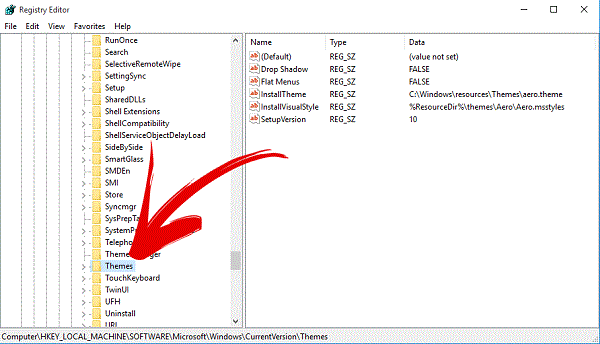
After that, when you've found 'Theme' folder then right click on it and create a new key.

Read More: How To Disable Action Center In Windows 10?
Set this key a name as 'Personalize'.

When once the key created then select it and right-click in right pane then select 'New' and 'DWORD (32-bit) Value'.
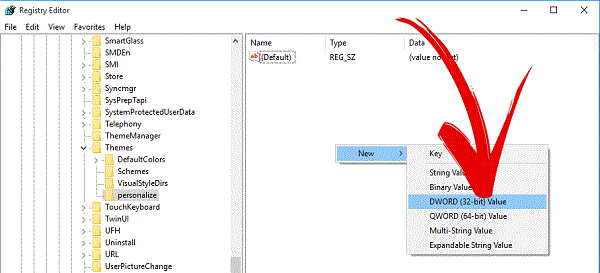
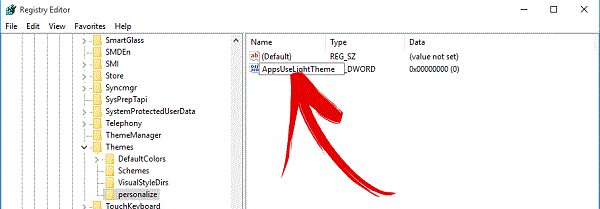
After that action, a DWORD key will create. So also give a name to this value 'AppsUseLightTheme'
Read More: Windows 10 Personal Assistant (Review)
Now your first Registry key has been edited and now you need to edit another registry key. So to do that, again open your Run and type regedit in it and click on OK.
When the Registry Editor opened then navigate the following keys.
HKEY_CURRENT_USER\SOFTWARE\Microsoft\Windows\CurrentVersion\Themes\personalize\

When you reached to the 'Themes' folder at once then just click on it. A drop down will open, here search for 'Personalize' folder. In case, if it's not there then create it yourself and don't forget to set it as name 'Personalize'. After all, click on Personalize and then right click on right pane and create a new registry key by following this 'New>DWORD (32-bit) Value'.

Read More: New Keyboard Shortcuts Of Windows 10
When this key has been created then give it a name 'AppsUseLightTheme'.

Everything has been done. Reboot now your operating system and check. Dark mode has been enabled in your Windows 10. Enjoy it!